43+ Remote Learning Activities for K-12: 2026 Guide
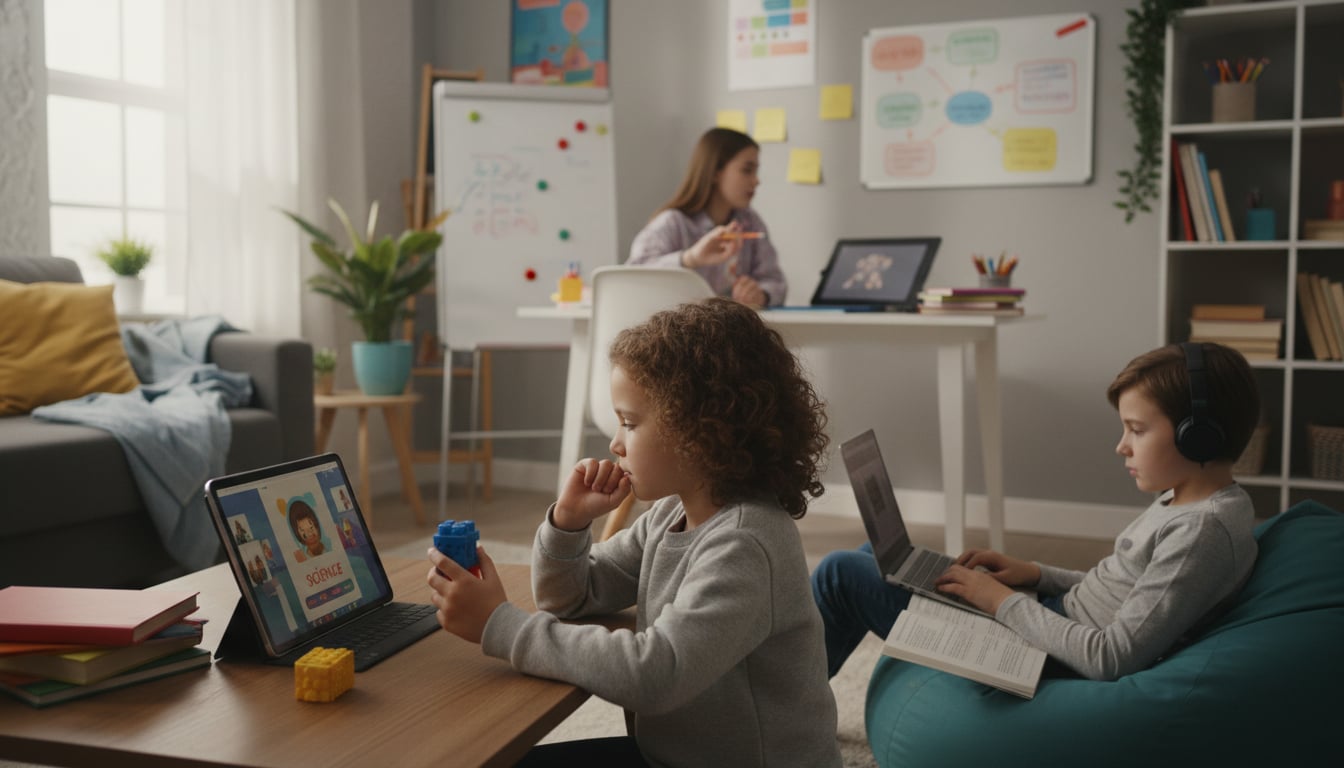
The shift toward digital and hybrid classrooms has permanently changed education, making effective remote learning activities more critical than ever. For many teachers, this means spending hours creating new materials from scratch to keep students engaged from a distance. The good news: with the right strategies and tools, you can build a vibrant virtual classroom, foster student connection, and reclaim your planning time.
Research from the National Bureau of Economic Research indicates that technology can increase student test scores by 0.35 standard deviations when used effectively. These activities are designed to be adaptable, fun, and educationally sound, covering everything from virtual field trips and stop motion animation to digital escape rooms, bingo boards, and self checking quizzes. Whether you teach kindergarten or AP classes, there is something here that fits.
Need materials fast? A worksheet generator can produce print ready PDFs on any topic in minutes, so you spend less time prepping and more time teaching.
Foundations for Successful Remote Learning
Before jumping into specific assignments, establishing a solid foundation is key. This involves setting clear expectations, building a consistent routine, and choosing technology that simplifies your workflow instead of complicating it.
A major challenge for educators has been the increased workload. A Gallup poll revealed that K-12 teachers worked an average of 57 hours per week during periods of remote instruction. To manage this, focus on three core pillars:
- Clear Communication: Use consistent channels to communicate with students and parents. A well structured weekly newsletter or announcement sets the tone and keeps everyone informed. Predictability reduces anxiety for students and questions for you. A class newsletter generator can help you maintain that consistency without the Sunday night scramble.
- Structured Flexibility: Establish a predictable schedule for live sessions and assignment due dates, but build in flexibility. Offer asynchronous remote learning activities that students can complete on their own time to accommodate different home environments and learning paces. Practitioners on Reddit consistently report that mixing synchronous and asynchronous work is the single biggest factor in keeping remote students from checking out.
- Secure and Simple Tech: Use tools that are easy for both you and your students to navigate. Any technology should be FERPA compliant and transparent about data. Tools that use the OpenAI API without training on user content provide essential peace of mind.
Remote Learning Activity Template: A Starting Framework
One of the most requested resources from teachers new to distance learning is a reusable remote learning activity template. Rather than designing every assignment from a blank page, a good template includes these sections:
| Section | What Goes Here |
|---|---|
| Learning Objective | One clear, measurable goal |
| Mode | Synchronous, asynchronous, or hybrid |
| Tools Needed | Platform, apps, materials list |
| Estimated Time | Prep time + student time |
| Instructions | Step by step directions students follow independently |
| Differentiation Notes | Scaffolds, extensions, accommodations |
| Assessment | Rubric, checklist, or exit ticket |
Build this once in Google Docs or Slides, then duplicate it for each new activity. Several teachers in online forums mention that having a standard template cut their planning time by roughly a third because they stopped reinventing the structural wheel every week.
Top 43+ Remote Learning Activities for Students
This collection covers a wide variety of ways to keep students engaged and learning effectively in a digital environment. Activities are organized into functional groups so you can quickly find what matches your curricular goals, grade band, and tech setup.
Virtual Trips and Mapping
These activities transport students beyond their immediate surroundings without requiring them to leave home. By integrating interactive maps and virtual tours, learners explore global geography and historical sites through immersive experiences. For quick map skills practice, assign a world map labeling worksheet before or after the tour.
1. On demand virtual field trips
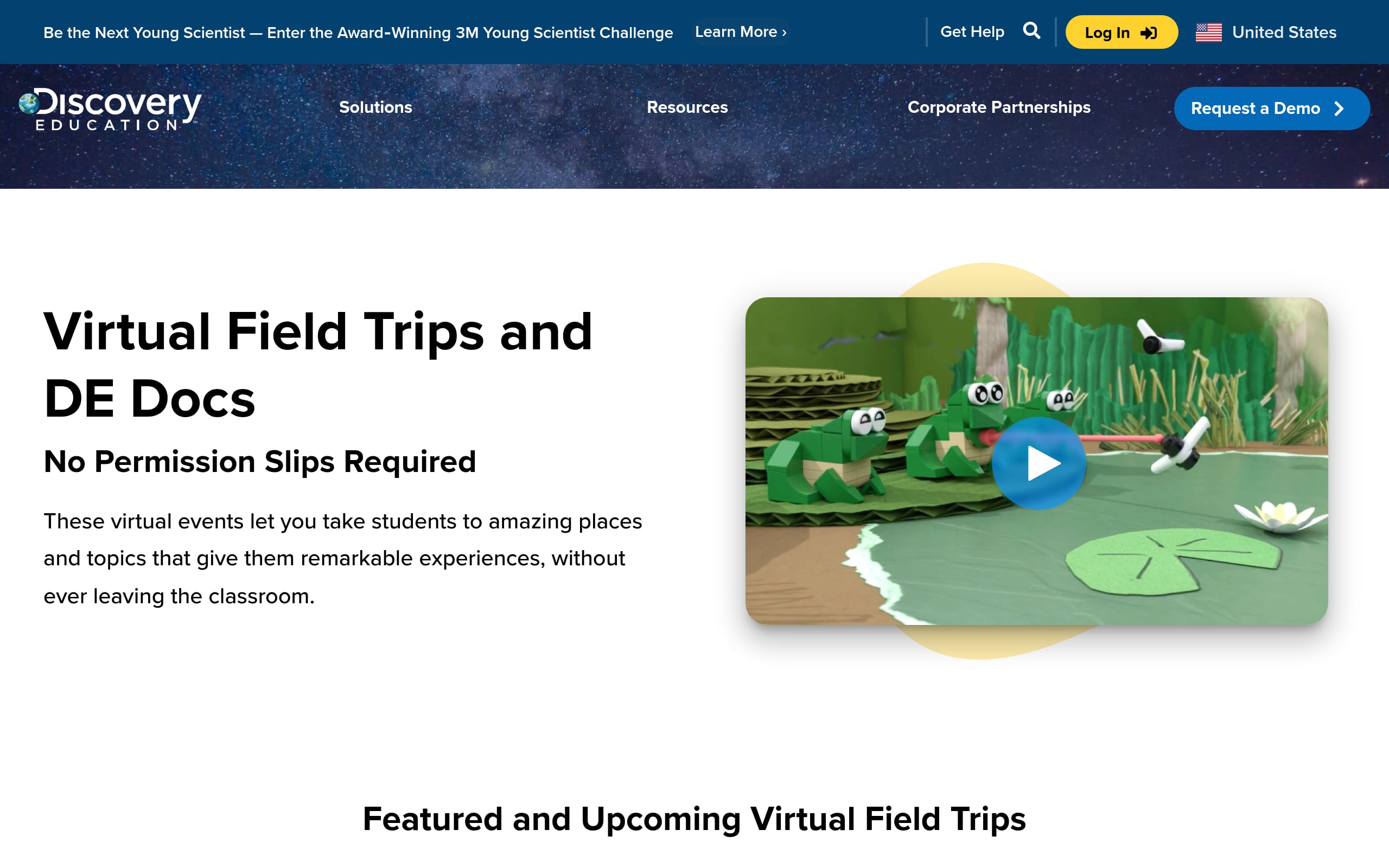
Students roam curated museum wings and national parks online, pausing to collect screenshots, notes, and quick reactions. Along the way, they practice observational inquiry and source to claim writing, culminating in a polished digital field journal that blends images with context.
- Quick setup: Grades K-12 • Tools: Google Arts & Culture, Flip, Slides • Mode: Async/Sync • Prep: 40 minutes • Student time: 60 minutes
- Run it:
- Share a journal or scavenger hunt template; model how to capture evidence and cite.
- Provide a question menu (mystery objects, map clues) and direct links to exhibits.
- Students explore, screenshot, and caption artifacts; submit journals.
- Differentiate: Offer choice boards by theme, audio directions, or leveled prompts with visuals.
- Evidence and scoring: Grade the digital journal with an analytical rubric for observation quality, accuracy, and synthesis.
2. Virtual Walking Tour
Learners "walk" through 360 degree streetscapes and landmarks, zooming in on signage, patterns, and public art to surface cultural insights. They translate notes into a travelogue, strengthening descriptive writing, perspective taking, and evidence based commentary.
- Quick setup: Grades 3-12 • Tools: Google Earth, Arts & Culture, Flip • Mode: Async/Sync • Prep: 20 minutes • Student time: 45 to 60 minutes
- Run it:
- Issue a "digital passport" template for logging observations and coordinates.
- Assign 2 to 3 stops; model using Street View and pinning a precise view.
- Students draft a short travel entry per stop and cite on screen evidence.
- Differentiate: Provide jump to links, historical image comparisons, and sentence stems.
- Evidence and scoring: Collect Travelogue Slides; score with a checklist/rubric for specificity, voice, and accuracy.
3. Creating stories with Google Earth
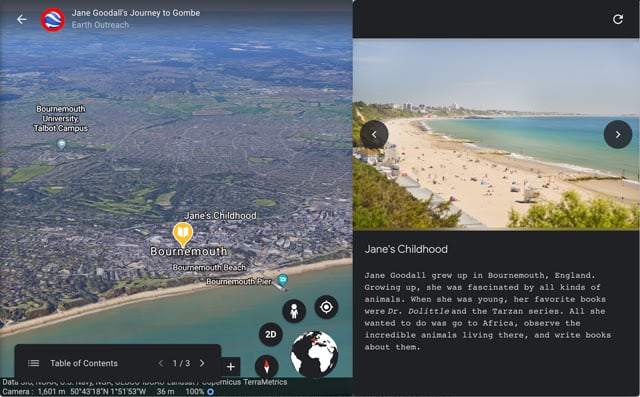
Students build an interactive narrative in Google Earth Projects, sequencing places, media, and text to explain a journey, event, or theme. The result is a spatial story that pairs research with location aware visuals.
- Quick setup: Grades 4-12 • Tools: Google Earth, Drive • Mode: Async • Prep: 30 minutes • Student time: 2 to 4 hours
- Run it:
- Model creating a Project, adding placemarks, and customizing views.
- Students draft scripts, add media, and order stops to tell a coherent story.
- Share view only links for a peer gallery walk.
- Differentiate: Offer scaffolded scripts, exemplar layers, or optional distance/route challenges.
- Evidence and scoring: Evaluate project links with a rubric for accuracy, sequencing, and integration of sources.
4. Take a Google MyMaps road trip
Teams design a themed digital itinerary (literary journeys, civil rights routes, biome tours) by plotting points and adding multimedia. The collaborative map becomes a living research product and a navigable study tool. This works especially well as a social studies lesson plan anchor, since students connect geography to historical events or cultural patterns.
- Quick setup: Grades 4-12 • Tools: Google MyMaps, Search, YouTube • Mode: Sync/Async • Prep: 30 minutes • Student time: 3 to 5 hours across several sessions
- Run it:
- Share a template; assign roles (Cartographer, Researcher, Curator).
- Plot locations, add evidence (images, clips), and write concise annotations.
- Publish a view link; classmates comment with questions and connections.
- Differentiate: Provide pre selected coordinates, CSV imports, or exemplars for structure.
- Evidence and scoring: Score final map links with a research and accuracy rubric and contribution checks.
5. Retell history in a map
Students pin primary sources to coordinates to visualize movements, conflicts, or migrations. As layers grow, so does the chronological and spatial logic of the narrative, helping learners connect the where, when, and why.
- Quick setup: Grades 6-12 • Tools: Google Earth Projects or ArcGIS StoryMaps • Mode: Async with a synchronous gallery walk • Prep: 45 minutes • Student time: 3 to 5 class sessions
- Run it:
- Provide a topic and a "Geo Log" to capture coordinates and source notes.
- Students add pins with captions, images, and links to primary sources.
- Host a live gallery walk; peers leave evidence based comments.
- Differentiate: Use Geo Starter Kits with pre selected coordinates and vetted images.
- Evidence and scoring: Assess spatial accuracy, chronological reasoning, and source analysis via rubric.
6. Create a Guide to an Area
Students research a neighborhood, campus, or habitat and publish a media rich guide that mixes practical tips with context. They practice audience aware writing, curation, and visual organization, then share it like a real world product.
- Quick setup: Grades 4-12 • Tools: Google My Maps, ArcGIS StoryMaps, or Canva • Mode: Async/Sync • Prep: 45 minutes • Student time: 4 to 6 hours over one week
- Run it:
- Provide a content checklist (stops, safety/context, visuals, credits).
- Students pin points or build sections with descriptions and media.
- Peer review for clarity and usefulness before publishing.
- Differentiate: Offer sentence stems, starter media, or advanced data layers.
- Evidence and scoring: Evaluate the published link with research accuracy and media literacy rubrics.
Collaboration and Co creation
Remote learning works best when it builds a sense of community through shared tasks and real time interaction. Research on 21st century skills identifies collaboration as one of the critical "4Cs" for modern learning, and studies have shown that students in collaborative settings retain information longer than those in lecture only formats. Getting students to know each other first makes group work smoother; icebreaker activities are worth running before assigning collaborative projects.
1. Collaborative Shared Slides
The class co builds a single deck where each slide is a student's micro report. As the deck grows, so does collective knowledge and the habit of giving clear, helpful feedback in context.
- Quick setup: Grades 3-12 • Tools: Google Slides or Canva • Mode: Sync/Async • Prep: 20 minutes (master templates) • Student time: 45 to 90 minutes
- Run it:
- Create a master deck with labeled slides per student/team.
- Model citing, captioning, and media alignment; students add content.
- Facilitate peer comments and quick in slide checklists.
- Differentiate: Provide scaffolded slide frames, sentence stems, or image banks.
- Evidence and scoring: Use version history for contribution tracking; score content and feedback quality.
2. Student to Student Connections
Interest based teams tackle a sustained mini project (designing a resource, prototype, or explainer) while practicing roles, deadlines, and constructive critique. Community forms around purpose, not proximity.
- Quick setup: Grades 6-12 • Tools: Padlet, Miro, Canva • Mode: Hybrid • Prep: 30 minutes • Student time: 2 to 3 hours per week
- Run it:
- Use a passion survey to form groups; assign rotating roles.
- Plan goals on a shared board; set short feedback cycles.
- Publish the artifact to a class hub for comments.
- Differentiate: Offer Role Cards, sentence frames for critique, and exemplars.
- Evidence and scoring: Assess final artifacts with a co creation rubric plus peer/self evaluations.
3. Sticky Note Brainstorming
A digital whiteboard becomes a buzzing idea wall: students post quick thoughts, group them into themes, then vote on priorities. The outcome is a clear, class owned roadmap for projects or research.
- Quick setup: Grades 3-12 • Tools: FigJam, Padlet, or Miro • Mode: Sync/Async • Prep: 15 minutes • Student time: 30 to 45 minutes
- Run it:
- Prompt silent ideation; timebox posting.
- Lead thematic clustering; label groups.
- Dot vote to select top directions.
- Differentiate: Provide organizer templates, color coding, or sentence stems.
- Evidence and scoring: Submit board link; evaluate participation and synthesis via a brief rubric plus exit ticket.
Learning Pathways, Notebooks, and Journals
Organized digital structures help students track their personal growth and synthesize information over the course of a unit. These items show how interactive notebooks, hyperdocs, and graphic organizers can centralize resources while providing space for meaningful reflection.
1. Hyperdocs
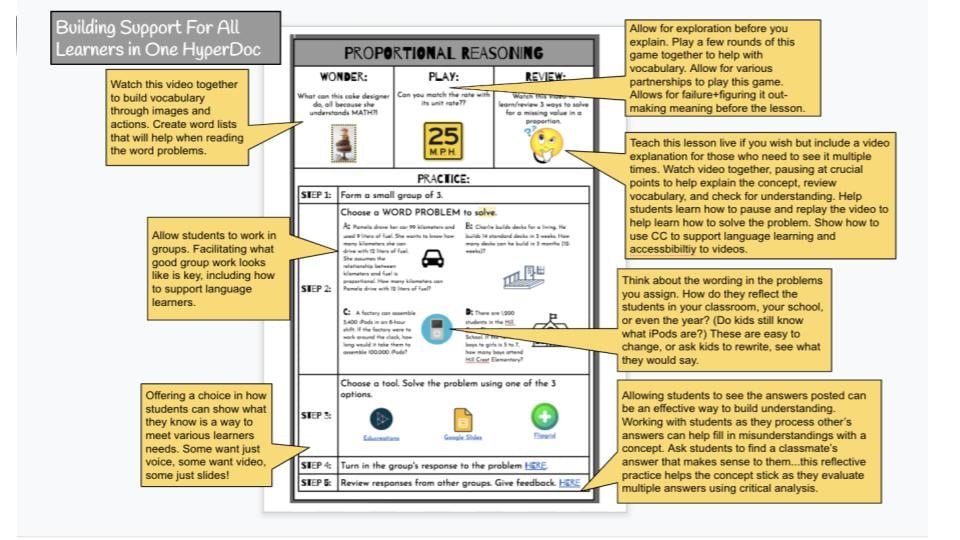
Learners navigate an Engage, Explore, Explain, Apply journey in a single, link rich doc or deck. Independence grows as they choose paths, curate sources, and create to show mastery. This structure maps neatly to the 5E lesson plan model, making it easy to align with established instructional frameworks.
- Quick setup: Grades K-12 • Tools: Google Docs/Slides, Padlet, Flip • Mode: Async/Hybrid • Prep: 2 to 4 hours • Student time: 2 to 5 class periods
- Run it:
- Launch with a hook; provide exploration links and organizers.
- Model an Explain mini lesson; assign Apply tasks with choice.
- Host a share out or gallery walk.
- Differentiate: Offer scaffolded templates, audio supports, and tiered choice boards.
- Evidence and scoring: Assess final artifacts with proficiency rubrics inside your LMS.
2. Digital Interactive Notebooks
Students maintain a living portfolio: drag and drop diagrams, reflections, and quick checks collected in one cloud based notebook. Organization meets synthesis as each entry documents what they learned and how they learned it.
- Quick setup: Grades 3-12 • Tools: Google Slides • Mode: Async/Sync • Prep: 60 minutes • Student time: about 30 minutes per entry
- Run it:
- Distribute a templated notebook via LMS; model one entry.
- Students add notes, screenshots, and brief reflections.
- Periodic check ins for feedback and revision.
- Differentiate: Provide scaffolded versions, audio/voice typing, or optional extensions.
- Evidence and scoring: Use a reflection and organization rubric; add digital sticker feedback.
3. Graphic Organizer Templates
Graphic organizers are among the most versatile tools in any remote teacher's kit. A well designed graphic organizer template gives students a visual scaffold for sorting ideas, comparing concepts, or planning writing, all without requiring constant teacher direction. Common formats include Venn diagrams, KWL charts, cause and effect chains, concept maps, and story maps.
The key to making graphic organizers work remotely is distribution. Create a master version in Google Slides or Docs, lock the structural elements, and share editable copies through your LMS. Students fill in the organizer asynchronously, then bring their completed version to a synchronous discussion.
Practitioners on Reddit note that graphic organizers are particularly effective for English language learners and students with IEPs because the visual structure reduces the cognitive load of open ended prompts. For teachers who want to skip the design step entirely, an AI worksheet generator can produce customized graphic organizers by subject and grade level in seconds.
- Quick setup: Grades K-12 • Tools: Google Slides, Canva, or Jamboard • Mode: Async • Prep: 15 minutes • Student time: 20 to 40 minutes
- Run it:
- Choose a format that matches the thinking skill (comparing, sequencing, categorizing).
- Share an editable copy; model completing one section.
- Students submit completed organizers as evidence of thinking before a larger assignment.
- Differentiate: Pre fill partially for struggling learners; add blank extension sections for advanced students.
4. Create a Photo Journal in Google Docs
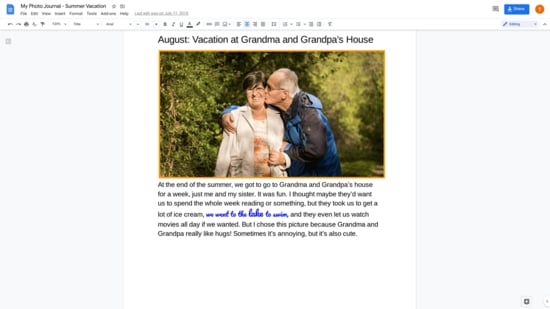
From lab investigations to community snapshots, students pair original photos with concise captions in a running Doc. Visual literacy and technical organization take center stage as the journal grows over time.
- Quick setup: Grades 4-12 • Tools: Google Docs, Photos • Mode: Async/Sync • Prep: 20 minutes • Student time: 45 to 90 minutes setup plus 15 minutes per entry
- Run it:
- Model inserting images, adding captions, and using Alt Text.
- Students contribute a photo plus reflection cycle on schedule.
- End each week with a highlight post.
- Differentiate: Provide caption frames, language supports, or voice to text options.
- Evidence and scoring: Evaluate with a concise rubric for alignment, reflection depth, and organization.
Presentations and Video Products
Moving beyond static slides, these activities empower students to share knowledge through dynamic multimedia and personal narrative. A study by the tech platform Kaltura found that 91% of educators believe video increases student satisfaction with their learning experience.
1. Interactive Presentation
Instead of passive slides, students respond to polls, draw on diagrams, and explain thinking live. You get instant formative data while they get an active learning lane. These double as strong bell ringer activities when kept to 5 to 10 minutes at the start of a session.
- Quick setup: Grades K-12 • Tools: Nearpod, Pear Deck • Mode: Sync or Async • Prep: 45 minutes • Student time: about 40 minutes
- Run it:
- Add checks (draw, draggable, text) to key slides.
- Model one response; run the session; pause to analyze results.
- Save reports and assign a reflection question.
- Differentiate: Enable text to speech, audio responses, and extended time.
- Evidence and scoring: Review session reports and exit tickets to determine target mastery.
2. Slide Presentation Videos
Students script, design, and record a narrated deck to teach others. Speaking clarity, visual focus, and audience awareness drive the production of a portfolio ready video.
- Quick setup: Grades 4-12 • Tools: Google Slides, Loom • Mode: Async • Prep: 20 minutes • Student time: 60 to 120 minutes
- Run it:
- Build clean slides; draft notes as a voiceover script.
- Record with Loom (camera optional) and trim.
- Post to LMS with a peer feedback prompt.
- Differentiate: Offer templated decks, voice only options, or timing cues.
- Evidence and scoring: Assess video links for clarity, structure, and accuracy using a rubric.
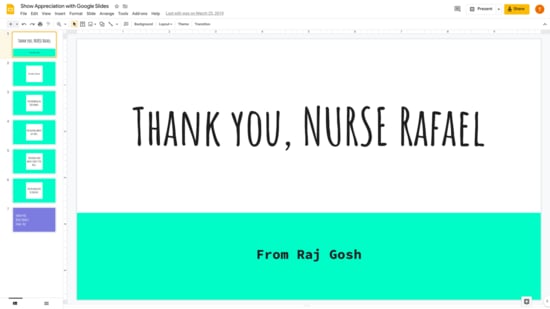
3. Show Appreciation with Google Slides
A thoughtful design challenge: craft a digital thank you card that's sincere, well composed, and ethically sourced. Students practice tone, layout, and attribution in a polished one pager.
- Quick setup: Grades K-12 • Tools: Google Slides • Mode: Async • Prep: 20 minutes • Student time: about 45 minutes
- Run it:
- Share a card template and a mini lesson on message plus design.
- Students add images (with credits) and write focused notes.
- Send or publish to a class wall of gratitude.
- Differentiate: Provide sentence starters, bilingual supports, or audio messages.
- Evidence and scoring: Rubric covers message clarity, design principles, and image attribution.
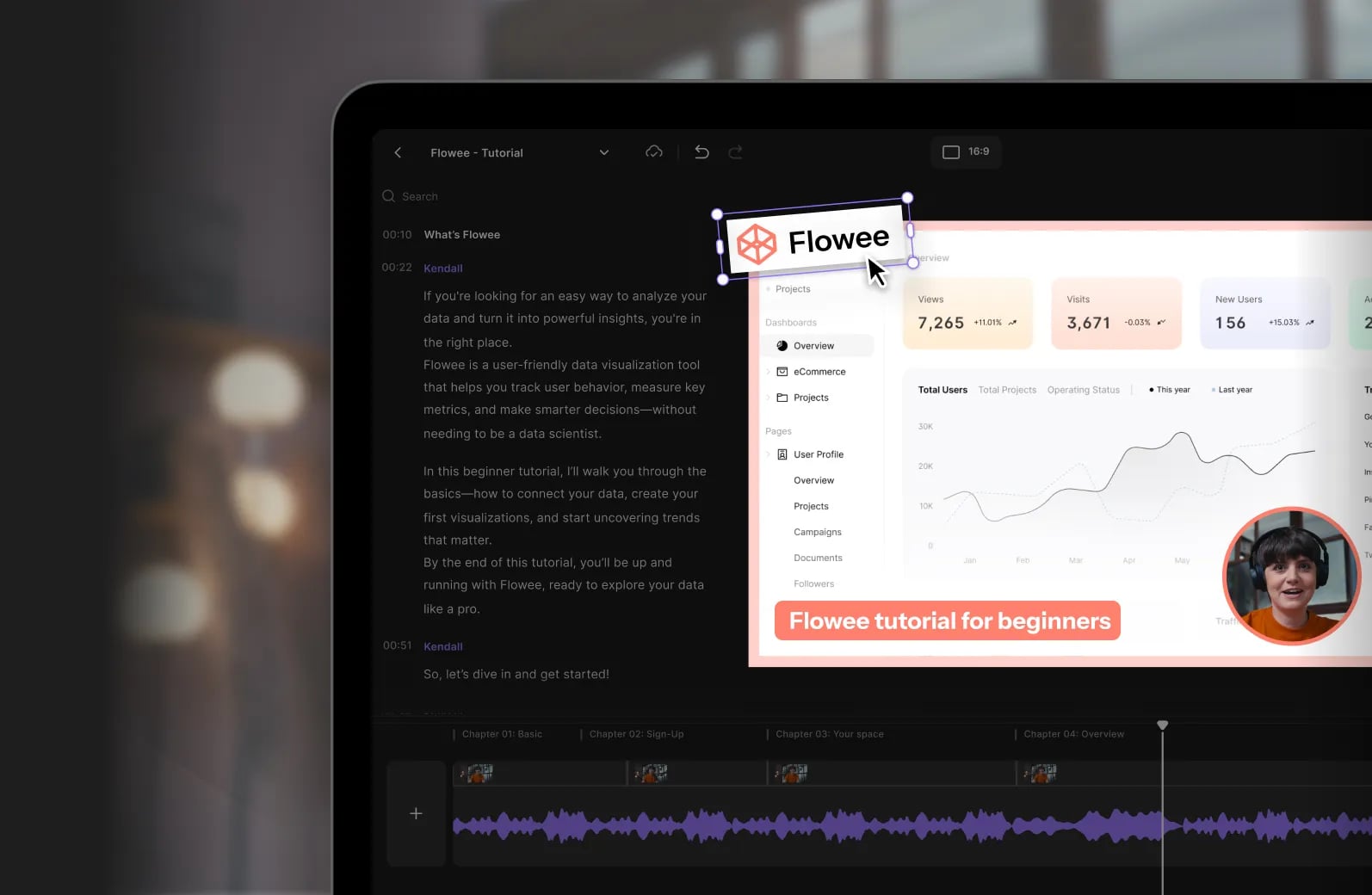
4. Tutorial Videos
Students become peer instructors, scripting and recording concise how to videos. Teaching a concept cements mastery while honing sequencing and digital communication.
- Quick setup: Grades K-12 • Tools: Flip, Canva, Loom, or ScreenPal • Mode: Async • Prep: 30 minutes • Student time: 60 to 90 minutes
- Run it:
- Draft a storyboard and short script; rehearse once.
- Record and post to a shared gallery; tag with keywords.
- Watch two peers' videos and leave time stamped feedback.
- Differentiate: Offer script templates, visual only demos, or captions/voiceovers.
- Evidence and scoring: Submit video link plus a mini quiz; score accuracy, clarity, and pacing.
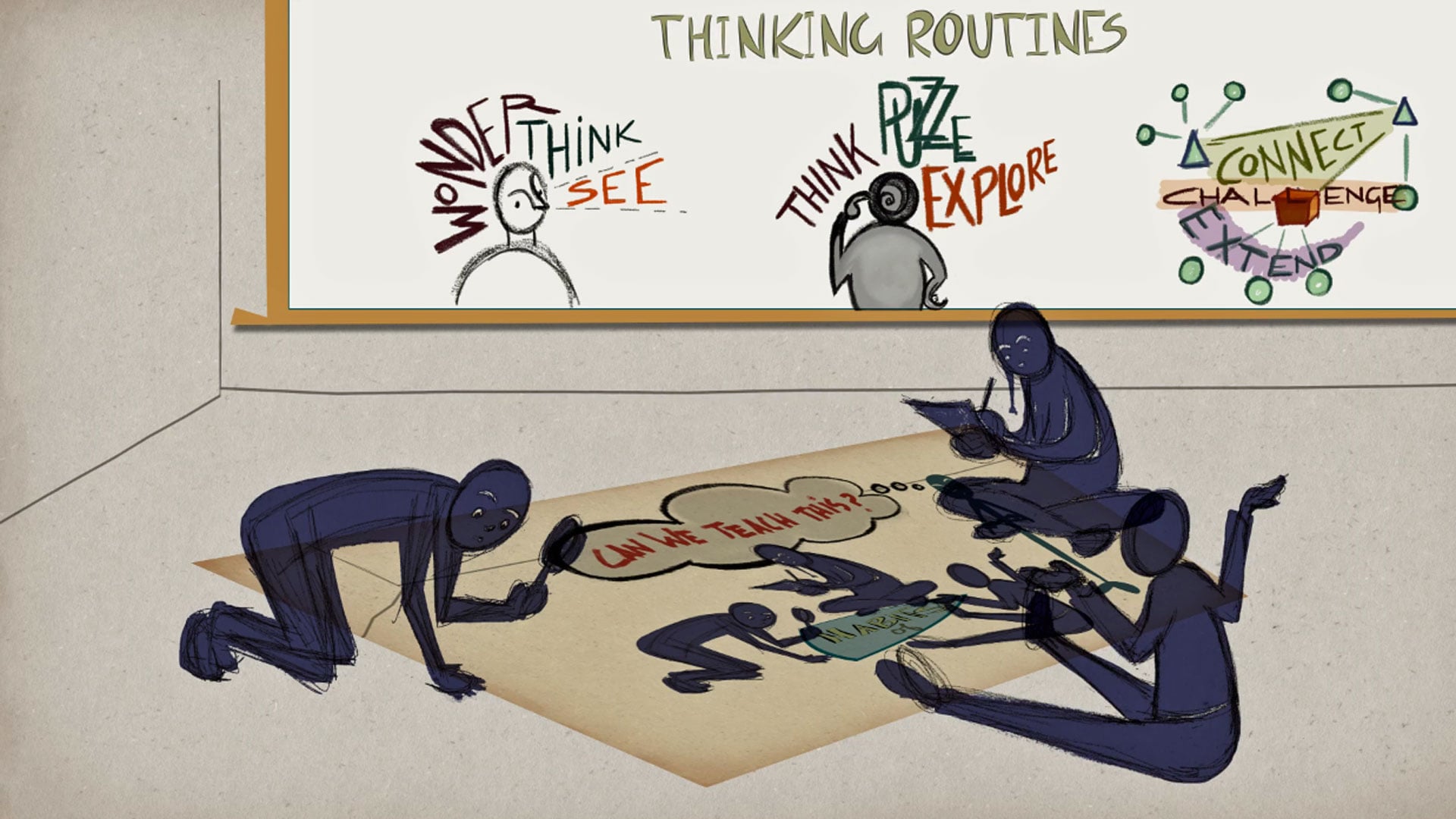
5. Thinking About Thinking Advice Videos
Students record short advice clips narrating how they overcame a tricky concept. The emphasis is metacognition: naming strategies, monitoring understanding, and modeling perseverance for peers.
- Quick setup: Grades 5-12 • Tools: Flip • Mode: Async • Prep: 20 minutes • Student time: about 60 minutes
- Run it:
- Identify a bottleneck idea and outline the "Aha!" path.
- Record a concise tip video; add captions.
- Post to a class "strategy library."
- Differentiate: Use thinking stems, avatars, or screen overlays for demonstrations.
- Evidence and scoring: Rubric focuses on clarity of strategy, reflection quality, and transferability.
6. Pitch Your Passion
Students craft a tight two minute pitch championing something they care about. They refine hook, claim, and proof, then present live or via video to persuade a real audience.
- Quick setup: Grades 6-12 • Tools: Flip, Loom, Canva, or Google Slides • Mode: Async prep/Sync delivery • Prep: 45 minutes • Student time: 2 to 4 hours
- Run it:
- Plan with a storyboard and talk track; design 3 to 5 visual cues.
- Record or present live; field one audience question.
- Reflect on presence, pacing, and evidence.
- Differentiate: Sentence starters, voice only options, or cue cards.
- Evidence and scoring: Score delivery, structure, and support using a persuasive speaking rubric.
7. Stop Motion Animation Activity
Stop motion animation is one of those rare activities that works across every subject area and every grade band. Students create short animated films by photographing objects (clay figures, paper cutouts, LEGO bricks, even household items) in small incremental movements, then stringing the frames together into a video. The result is a product that demands planning, patience, and storytelling skill.
For a science lesson plan, students can animate the water cycle, cell division, or the phases of the moon. In ELA, they can retell a scene from a novel. In math, they can walk through a multi step problem visually. One YouTube creator who teaches middle school shared a walkthrough showing students producing 30 second stop motion videos explaining the stages of mitosis, noting that the tactile element kept even her most disengaged remote learners on task.
- Quick setup: Grades 3-12 • Tools: Stop Motion Studio (free app), iMovie, or Canva video • Mode: Async • Prep: 30 minutes • Student time: 2 to 4 hours
- Run it:
- Assign a concept; students storyboard 8 to 12 key frames.
- Photograph scenes (minimum 5 to 8 photos per second of video for smooth motion).
- Import into a stop motion app, add titles and narration, export.
- Differentiate: Younger students can use fewer frames and simple paper cutouts. Advanced students can add sound effects, credits, and multi scene narratives.
- Evidence and scoring: Rubric for scientific/narrative accuracy, sequencing logic, and production quality.
Publishing and Portfolios
Providing an authentic audience is a powerful motivator that encourages students to produce their highest quality work. This section explores platforms where learners curate their academic journey and publish their insights for others to see.
1. Create a Blog with Google Sites
Students launch a personal learning blog, publishing reflections, process notes, and project highlights. Over time, it becomes a professional footprint and a window into growth.
- Quick setup: Grades 6-12 • Tools: Google Sites, Drive, Classroom • Mode: Async • Prep: 45 minutes setup • Student time: 2 to 3 hours design plus weekly 45 minute posts
- Run it:
- Share a Sites template with sections for posts and project galleries.
- Teach headlines, tags, and image credits; students publish an intro post.
- Set a weekly cadence and comment protocol.
- Differentiate: Embed Flip reflections, reading levels, or analytics for progress talks.
- Evidence and scoring: Evaluate URLs with a digital citizenship and writing quality rubric.
2. Build a Digital Portfolio
A curated web space houses students' best work alongside reflective justifications. The portfolio frames mastery as a story of iteration and insight.
- Quick setup: Grades K-12 • Tools: Google Sites, Seesaw • Mode: Async • Prep: 1 hour • Student time: 2 to 4 hours
- Run it:
- Provide a starter layout; students select 3 to 5 artifacts.
- Write reflection statements linking work to standards or goals.
- Peer review for clarity and navigation.
- Differentiate: Offer choice boards, bilingual headers, or audio reflections.
- Evidence and scoring: Score published URLs with a portfolio rubric (content, reflection, usability).
3. Publish for an audience: Sites
Students design a small website for authentic readers like parents, local partners, or younger peers. Decisions about structure, navigation, and media become part of the learning.
- Quick setup: Grades 6-12 • Tools: Google Sites, Wix, Adobe Express • Mode: Async • Prep: 45 minutes • Student time: 3 to 5 hours
- Run it:
- Draft a sitemap and wireframe pages.
- Build pages with clear headings, media, and citations.
- Publish and gather audience feedback.
- Differentiate: Use starter templates or advanced HTML/embed challenges.
- Evidence and scoring: Assess URLs using criteria for navigation, synthesis, and accessibility.
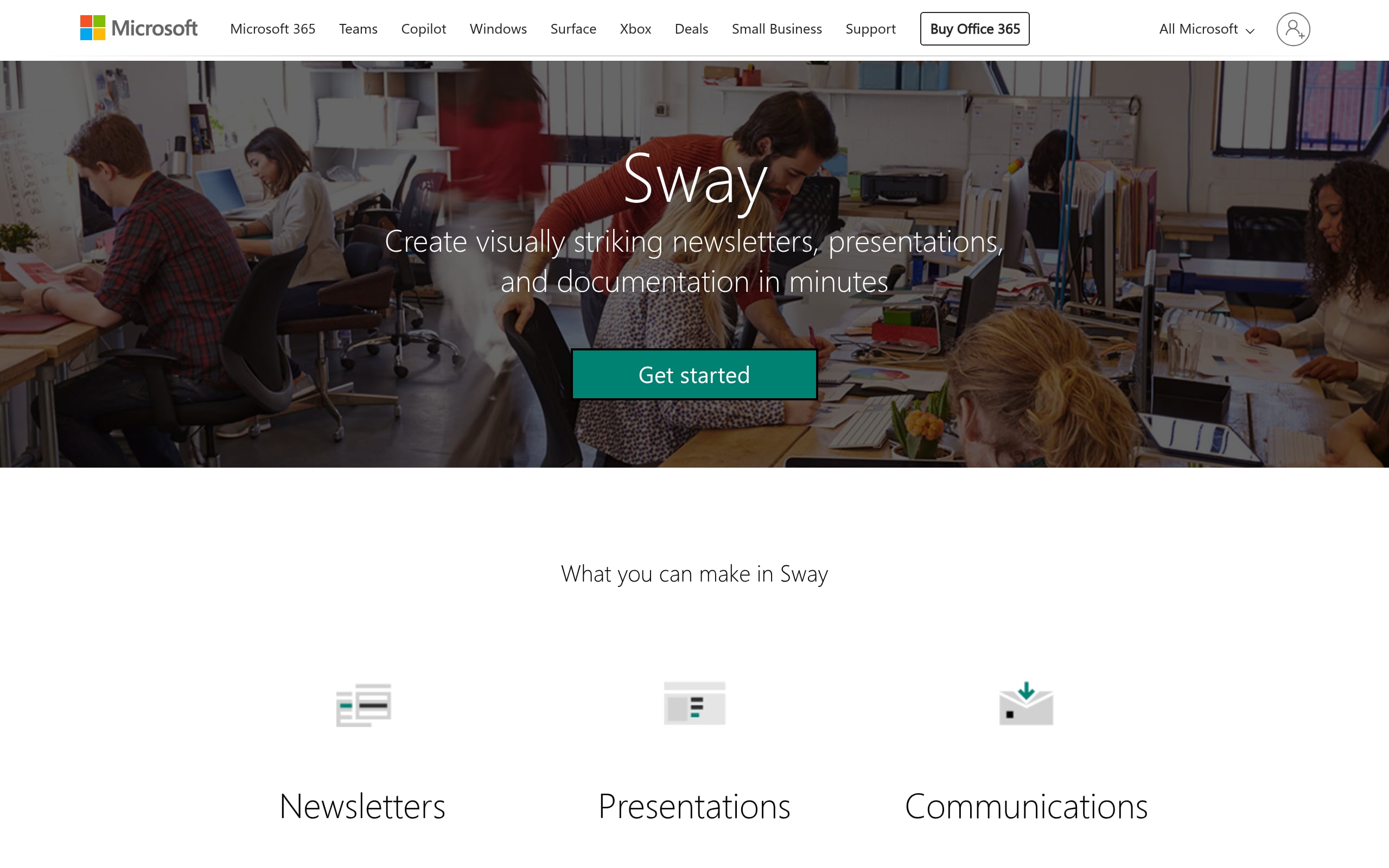
4. Publish for an audience: Sway
With Sway, learners craft sleek web reports that sequence text, images, and video into a persuasive narrative. The tool's design engine helps focus attention on content and flow.
- Quick setup: Grades 4-12 • Tools: Microsoft 365 • Mode: Async/Sync mix • Prep: 30 minutes • Student time: 2 to 5 hours
- Run it:
- Build a Storyline outline, then add and group media.
- Choose a style; preview on phone and laptop.
- Share the link for peer review and publish.
- Differentiate: Use accessibility checkers, font pairing guides, and templates.
- Evidence and scoring: Evaluate interactivity, citations, and coherence with a multimedia rubric.
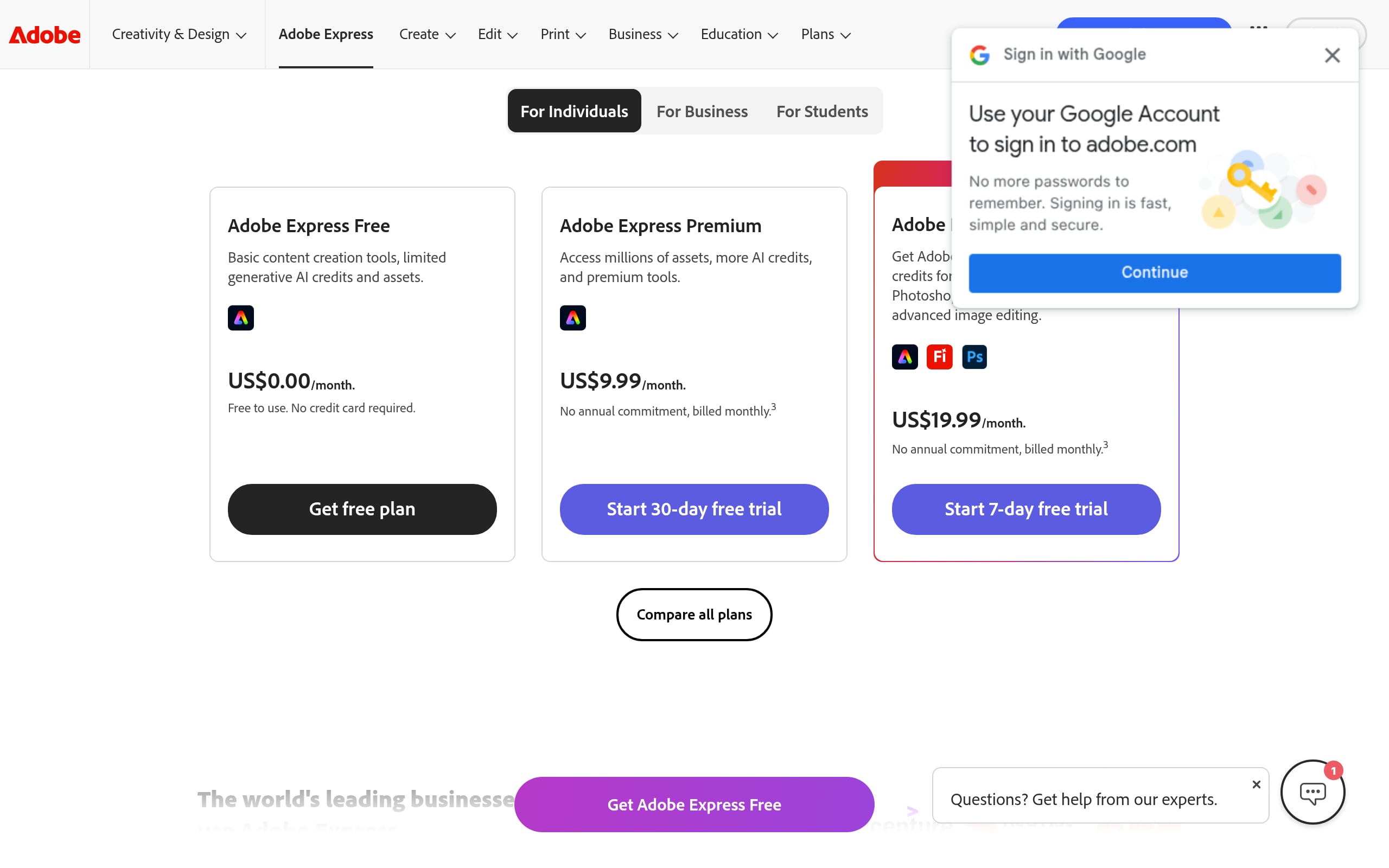
5. Publish for an audience: Adobe Spark Page
Students transform research into a responsive, scrollable story page. They practice concise copywriting, ethical media use, and sleek layout, then publish a link ready artifact.
- Quick setup: Grades 4-12 • Tools: Adobe Express, LMS • Mode: Async • Prep: 30 minutes • Student time: 2 to 4 hours
- Run it:
- Draft sections (hook, context, evidence, impact).
- Build with headers, galleries, and buttons for sources.
- Publish and collect reader feedback.
- Differentiate: Provide organizers, sample layouts, or design challenges.
- Evidence and scoring: Score URLs with a rubric for accuracy, design clarity, and source quality.
6. PDF Ebooks
Students author a polished ebook that compiles research, visuals, and design into a portable PDF, perfect for offline reading and portfolio evidence.
- Quick setup: Grades 4-12 • Tools: Canva, Book Creator • Mode: Async/Sync • Prep: 45 minutes • Student time: about 6 hours • Tip: Use Unsplash for imagery
- Run it:
- Research and storyboard chapters; select a clean template.
- Build pages with headings, figures, and captions; export a mobile ready PDF.
- Share via class Padlet or LMS.
- Differentiate: Provide ELL scaffolds, caption frames, or advanced data charts.
- Evidence and scoring: Assess content accuracy, layout, and citations using a detailed rubric.
Visual Design: Posters and Infographics
Visual literacy is a crucial skill in the modern world, requiring students to distill complex data into clear and compelling graphics. These activities help learners practice graphic design and information architecture.
1. Interactive Digital Posters
A single canvas becomes an interactive story with hotspots that reveal images, clips, and brief explanations. Students learn to guide attention and build meaning layer by layer.
- Quick setup: Grades 5-12 • Tools: Canva, Genially • Mode: Async/Sync • Prep: 45 minutes • Student time: 3 to 4 hours
- Run it:
- Teach visual hierarchy; set a content checklist.
- Students design the base poster, then add clickable markers.
- Test links and publish for peers.
- Differentiate: Use scaffolded templates, icon sets, or audio only reveals.
- Evidence and scoring: Multimodal rubric covering clarity, accuracy, and technical functionality.
2. Create an Infographic
Students turn complex data into a clean, visual narrative. They decide what to foreground, how to group facts, and which visuals support the story best.
- Quick setup: Grades 6-12 • Tools: Canva, Adobe Express, or Piktochart • Mode: Async/Sync • Prep: 30 minutes • Student time: 3 to 5 hours
- Run it:
- Chunk research into claims and supporting data.
- Apply visual hierarchy (size, color, alignment) to guide the eye.
- Export PNG or share a live link for review.
- Differentiate: Provide templates, caption starters, or audio narrated alternatives.
- Evidence and scoring: Assess via rubric for accuracy, design, and story flow.
3. Infographic Templates
Template first design lowers the barrier to compelling visuals. Students slot in curated facts, refine headlines, and ship a professional infographic quickly.
- Quick setup: Grades 6-12 • Tools: Canva, Adobe Express • Mode: Async • Prep: 30 minutes • Student time: 60 to 120 minutes
- Run it:
- Assign a template; model concise copy and source labeling.
- Students customize color, icons, and charts.
- Export a PDF for submission.
- Differentiate: Provide skeleton templates or challenge with custom visualizations.
- Evidence and scoring: Evaluate PDFs for accuracy, hierarchy, and source clarity.
4. Digital Poster Presentation
A research poster paired with a short walkthrough video becomes a concise, persuasive showcase. Students blend design choices with sharp narration to make findings stick.
- Quick setup: Grades 5-12 • Tools: Canva, Slides • Mode: Hybrid • Prep: 30 minutes • Student time: about 3 hours
- Run it:
- Design poster sections; tighten headlines and captions.
- Record a 60 to 90 second tour; upload link with poster.
- Host an async gallery with time stamped feedback.
- Differentiate: Share templates, sample scripts, or alternative media options.
- Evidence and scoring: Score links for hierarchy, impact, and synthesis of key findings.
Social Media Simulations and Micro writing
By tapping into familiar digital formats, these exercises teach students how to communicate concisely and adopt different perspectives. Simulations allow learners to engage with historical figures or literary themes through a contemporary lens.
1. Tweet for Someone Template
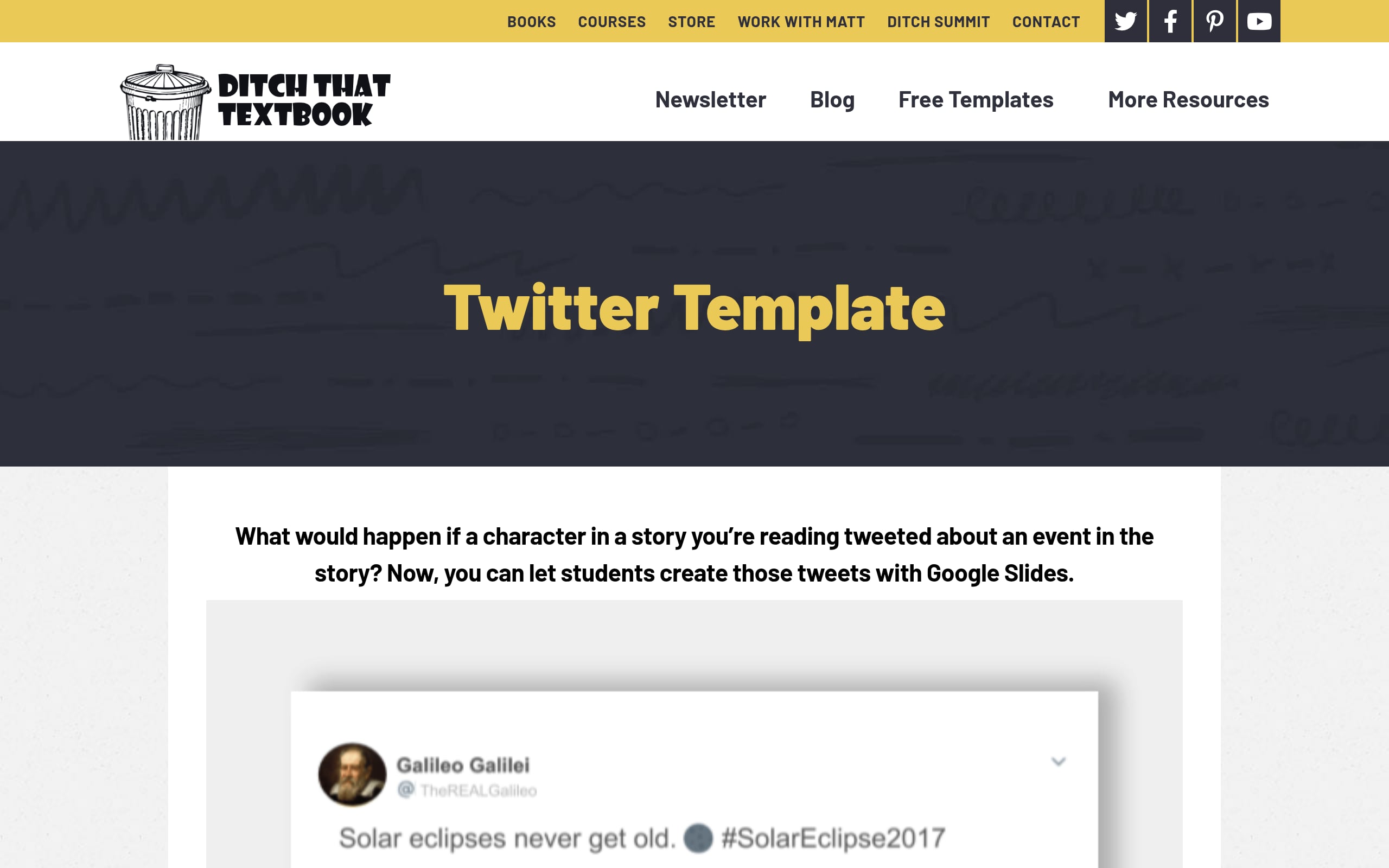
Students inhabit a historical figure or author, composing a thread length "tweet" that captures stance, tone, and context. Micro writing meets perspective taking in a single, punchy slide.
- Quick setup: Grades K-12 • Tools: Google Slides • Mode: Async/Sync • Prep: 10 minutes • Student time: about 40 minutes
- Run it:
- Distribute the tweet template and a voice/style mini lesson.
- Students draft, cite a source, and add a relevant image.
- Share to a class feed for replies.
- Differentiate: Provide stems, vocabulary banks, or audio only submissions.
- Evidence and scoring: Score the slide with a micro writing and accuracy rubric.
2. Instagram Stories Activities
Learners design a sequence of vertical "story" frames that distill events or processes into crisp captions and visuals. Polls, tags, and links make the learning interactive, even in simulation.
- Quick setup: Grades 6-12 • Tools: Google Slides, Canva, or Adobe Express • Mode: Sync/Async • Prep: 20 minutes • Student time: 45 to 60 minutes
- Run it:
- Storyboard 4 to 6 frames with hook, gist, insight.
- Build vertical slides; add simulated polls and location tags.
- Export as PDF or share a link.
- Differentiate: Use storyboarding organizers or point of view writing scaffolds.
- Evidence and scoring: Assess links/files with a micro writing and visual clarity rubric.
3. Caption This!
A single image, one perfect line: students craft a caption that nails context, tone, and purpose. It's a fast, high yield routine for analysis and word economy.
- Quick setup: Grades K-12 • Tools: Canva • Mode: Async/Sync • Prep: 10 minutes • Student time: about 15 minutes
- Run it:
- Post an image set; model one strong/weak caption.
- Students draft and revise; vote for the most precise.
- Optional: compile winners into a class reel.
- Differentiate: Offer stems, vocabulary supports, or bilingual options.
- Evidence and scoring: Evaluate captions on accuracy, tone, and concision with a quick rubric.
Inquiry, Research, and Curation
Developing strong information literacy habits is essential for students navigating a world of endless data. These activities focus on deep investigations and systematic collection of resources to foster critical thinking.
1. One Question Deep Dive
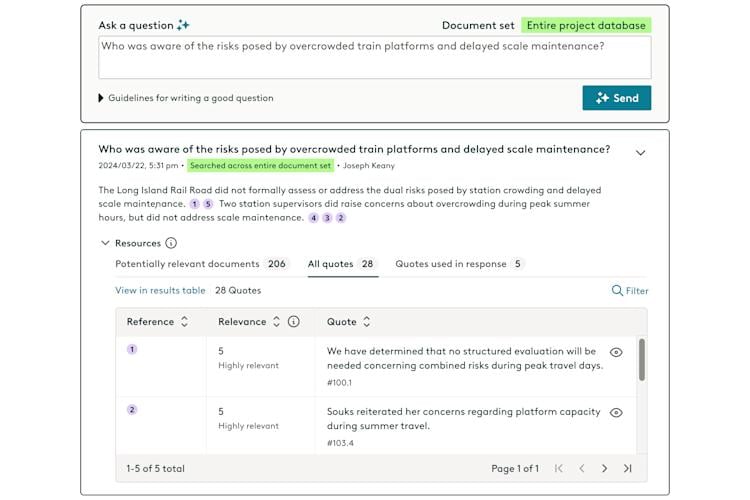
Given a single "wicked question," students lateral read across sources and produce a tight synthesis card. The constraint pushes discernment: what matters, what's credible, what connects.
- Quick setup: Grades 6-12 • Tools: Google Docs, Padlet • Mode: Async • Prep: 20 minutes (question menu) • Student time: 60 to 90 minutes
- Run it:
- Choose a question; brainstorm search terms and source types.
- Document a search trail; extract 3 to 5 key findings.
- Write a concise synthesis with links and a claim.
- Differentiate: Provide Source Starter Packs, note frames, or gap spotting hints.
- Evidence and scoring: Submit a Digital Deep Dive Card; assess with a 4 point rubric.
2. Research and Develop a Topic
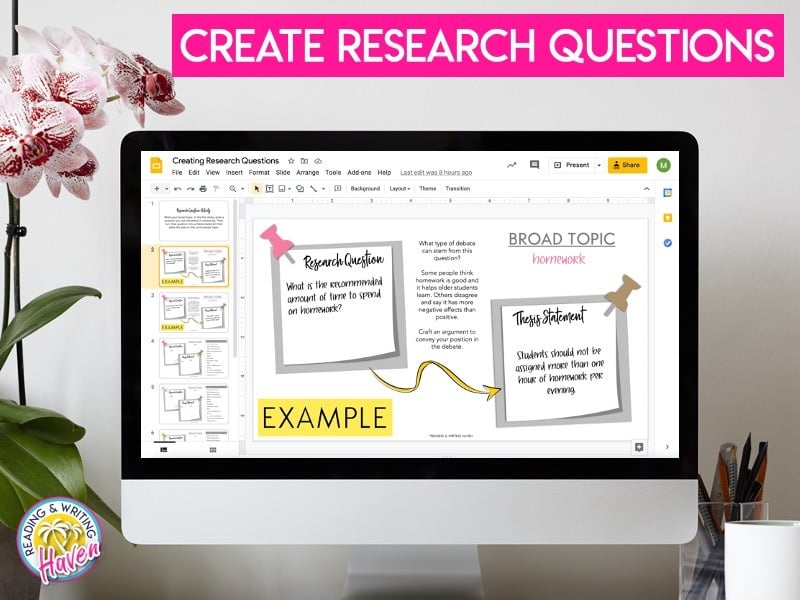
Groups pursue a driving question, build a shared evidence base, and co author a brief that argues a position. Collaboration lives in the document, including version history and all.
- Quick setup: Grades 6-12 • Tools: Google Docs or Padlet • Mode: Sync/Async • Prep: 45 minutes (templates) • Student time: 3 to 5 hours over a week
- Run it:
- Assign group templates; model lateral reading and source notes.
- Curate sources with annotations; divide sub questions.
- Draft and revise the group brief; cite.
- Differentiate: Offer pre vetted databases, sentence stems, and role rotations.
- Evidence and scoring: Assess synthesis via rubric; use version history for individual contributions.
3. Curate Lists and Collections
Students act as digital archivists, assembling annotated collections around a theme. The best lists read like mini museums: selective, organized, and purposeful.
- Quick setup: Grades 5-12 • Tools: Wakelet, Padlet • Mode: Async • Prep: 40 minutes • Student time: 2 to 4 hours
- Run it:
- Set criteria (variety, credibility, relevance); model an exemplar.
- Students curate five sources with short annotations and metadata.
- Publish and comment on two peers' collections.
- Differentiate: Provide starter links, audio tours, or guided note frames.
- Evidence and scoring: Score the shared link with a rubric for variety, depth, and organization.
4. Image annotation
Students analyze complex visuals (maps, artworks, photographs) by layering labels and links onto specific points. The result is an explorable image that teaches as it's viewed.
- Quick setup: Grades 4-12 • Tools: Canva, ThingLink • Mode: Async/Sync • Prep: 20 minutes • Student time: 45 to 90 minutes
- Run it:
- Upload the image; model precise labeling and hyperlinking.
- Students add tags with mini explanations and source links.
- Test interactives; share for class discussion.
- Differentiate: Offer scavenger checklists, vocab banks, or stretch screencasts.
- Evidence and scoring: Rubric based check for accuracy, placement, and clarity.
Literacy and ELA Responses
Traditional reading and writing tasks come alive through digital mediums that enhance student comprehension and engagement. These offer creative alternatives to the standard book report. For daily warm ups, try creative writing prompts that spark ideas before longer responses.
1. Better book reports
Trade the summary for cinematic persuasion: students script and cut a 60 to 90 second book trailer that spotlights theme and craft. Viewers should want to read and see the thinking behind the hype.
- Quick setup: Grades 4-12 • Tools: Canva or Adobe • Mode: Async • Prep: 30 minutes • Student time: 3 to 5 hours
- Run it:
- Storyboard scenes (hook, conflict, theme cue, call to read).
- Produce with consistent fonts, pacing, and rights safe media.
- Host a gallery; add peer "Would you read it?" polls.
- Differentiate: Use script by numbers, captioned stills, or director's commentary.
- Evidence and scoring: Analytical rubric for thematic evidence, persuasion, and technical polish.
2. 30 Second Book Talk Challenge
In a brisk elevator pitch, students hook peers with a must read moment. Precision matters: one claim, one reason, one quotable line.
- Quick setup: Grades 3-12 • Tools: Flip or Seesaw • Mode: Async • Prep: 20 minutes • Student time: about 45 minutes
- Run it:
- Teach the hook, gist, go read framework.
- Record in one or two takes; add captions.
- Post to a class shelf; comment with recommendations.
- Differentiate: Sentence starters, voice over only, or bilingual pitches.
- Evidence and scoring: Three point rubric for clarity, concision, and delivery.
Creative Storytelling and Narrative Media
Narrative driven projects allow students to exercise their imagination while building technical proficiency in media production. These activities highlight various ways to structure plots and develop characters using diverse digital formats.
1. Choice Stories
Students design non linear stories where reader choices steer the plot. The finished interactive (Twine or hyperlinked slides) invites classmates to play, critique, and iterate.
- Quick setup: Grades 4-12 • Tools: Twine or Google Slides • Mode: Async • Prep: 45 minutes (templates) • Student time: 3 to 5 hours
- Run it:
- Mind map branches; define consequences.
- Draft passages and link choices.
- Publish for peer playtesting and feedback.
- Differentiate: Provide pre linked templates or variable/score challenges for advanced writers.
- Evidence and scoring: Evaluate published URLs for coherence, pacing, and functional branching.
2. Storyboard
Before cameras roll, ideas need a blueprint. Teams map shots, dialogue, and cues on shared slides to align vision and plan production efficiently.
- Quick setup: Grades 4-12 • Tools: Google Slides • Mode: Sync/Async • Prep: 20 minutes • Student time: 60 to 120 minutes
- Run it:
- Assign roles (Director, Writer, DP); set shot conventions.
- Build frames with sketches or stills and brief notes.
- Conduct a table read; adjust pacing.
- Differentiate: Provide icon libraries, visual dictionaries, or voice to text support.
- Evidence and scoring: Assess narrative flow, clarity of cues, and completeness with a rubric.
3. Photo Comic Strips
Students shoot original photos and layer speech balloons and captions to tell a scene with punch. It's visual storytelling with concise dialogue and strong sequencing.
- Quick setup: Grades 3-12 • Tools: Google Slides, Canva • Mode: Hybrid • Prep: 20 minutes • Student time: 60 to 90 minutes
- Run it:
- Upload images into a grid; add callouts and sound effects.
- Tighten dialogue; check panel to panel flow.
- Export to PDF for sharing.
- Differentiate: Offer templates, word banks, or alternate text only paths.
- Evidence and scoring: Evaluate narrative flow, visual balance, and technical execution.
Coding, Animation, and Interactive Making
Integrating logical thinking with creative design, these activities introduce students to the fundamentals of computer science and digital interactivity. This section focuses on hands on making that transforms learners from passive content consumers into active digital creators.
1. Code Your Hero
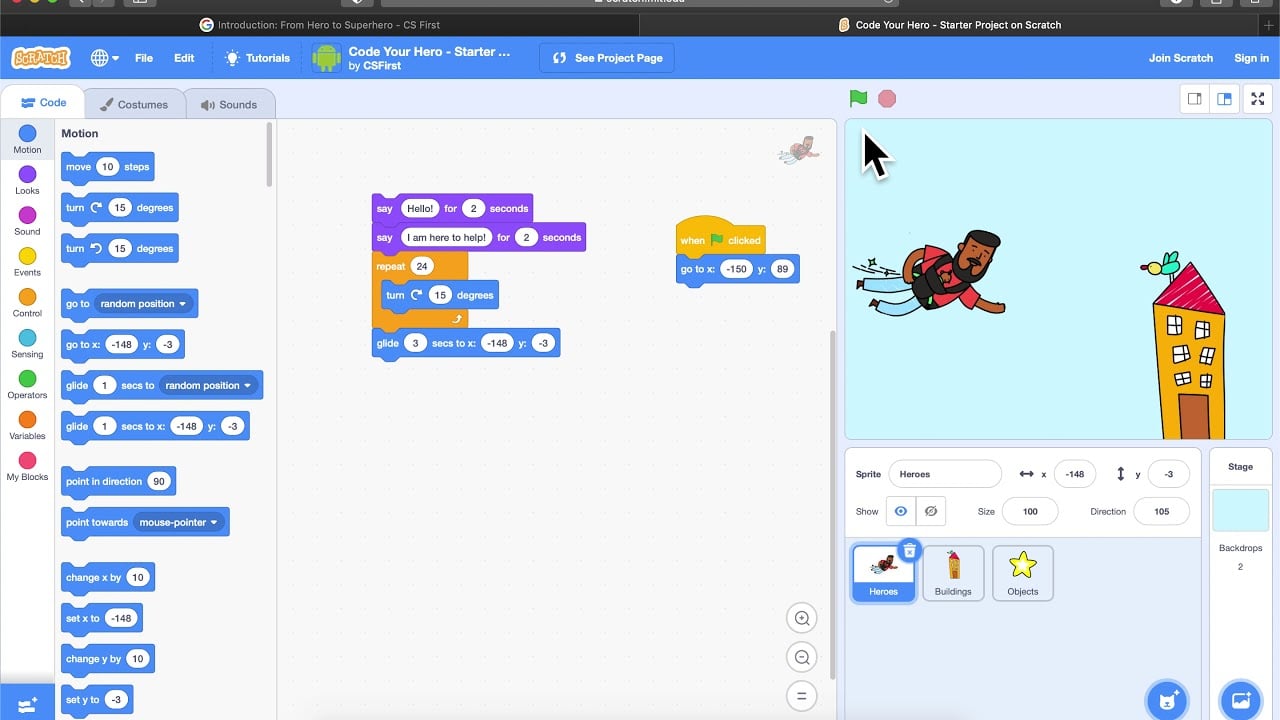
With block based coding, students animate a hero completing a mission. Sequencing, events, and loops power a tiny game that proudly shows computational thinking.
- Quick setup: Grades 3-8 • Tools: Scratch, Google CS First • Mode: Sync/Async • Prep: 20 minutes • Student time: 60 to 90 minutes
- Run it:
- Brainstorm traits and moves; remix a starter project or build fresh.
- Code movement, interactions, and win/lose states.
- Publish to a class studio and test.
- Differentiate: Starter projects for support; add variables/broadcasts for challenge.
- Evidence and scoring: Verify functional URLs; use a logic and features checklist.
2. Animate a Name
Students program letters to dance, spin, or sing, learning events and loops through a playful, personal artifact. It's the perfect on ramp to code logic.
- Quick setup: Grades 3-8 • Tools: Scratch or Google CS First • Mode: Sync/Async • Prep: 15 minutes • Student time: 45 to 60 minutes
- Run it:
- Model adding sprites and scripts; brainstorm effects.
- Students apply animations and sounds; debug together.
- Share project URLs and celebrate.
- Differentiate: Provide starter files or broadcast based animations for stretch.
- Evidence and scoring: Score URLs with a coding logic and creativity rubric.
3. Digital Escape Rooms
From cipher wheels to bug hunts, students solve sequenced digital puzzles that demand persistence and pattern spotting. They can also flip roles and design a room for classmates.
- Quick setup: Grades 4-12 • Tools: Google Forms, Sites, Genially, Scratch • Mode: Async/Sync • Prep: 15 to 180 minutes • Student time: 45 to 90 minutes
- Run it:
- Share the room link; model one clue solving strategy.
- Students collaborate in small teams; record reasoning.
- Debrief with a logic talk or creator Q&A.
- Differentiate: Offer Hint Decks, text to speech, or layered difficulty paths.
- Evidence and scoring: Form completion logs plus short Flip debrief; rubric for logic and perseverance.
Subject Specific Remote Activities
Many teachers search for remote learning activities tailored to a specific subject rather than a generic format. Here are approaches organized by content area that work well at a distance.
Math Lesson Plan Activities
Remote math instruction benefits enormously from visual and interactive tools. Beyond the standard worksheet, consider these formats:
- Bingo Board Activity: Create a math review bingo board where each square contains a problem. Students solve the problem to mark their square. This works for everything from basic multiplication facts in elementary grades to solving equations in algebra. Teachers on Reddit report that math bingo is one of the most reliable engagement strategies for synchronous remote sessions because it adds low stakes competition to routine practice.
- Interactive Self Checking PDF Quiz: Build a PDF in Google Forms or a tool like Formative where students enter answers and receive instant feedback. The self checking element means students can work independently while you monitor results in real time. This is ideal for an asynchronous math lesson plan covering topics like integer operations or geometry.
- Virtual Manipulatives: Sites like Polypad and the National Library of Virtual Manipulatives let students drag fraction bars, base ten blocks, and algebra tiles. Pair these with a graphic organizer template so students record what they discover.
Science Lesson Plan Activities
Science thrives on observation and experimentation, which might seem hard to replicate remotely. But several formats translate well:
- Kitchen Lab Experiments: Students conduct simple experiments (density columns, pH testing with cabbage juice, growing crystals) using household materials. They document results in a photo journal or stop motion video.
- Virtual Dissections and Simulations: Platforms like PhET Interactive Simulations from the University of Colorado offer free, research backed science simulations. Students manipulate variables and record observations in their digital interactive notebook.
- Data Collection Projects: Assign students to collect real world data (weather patterns, bird counts, plant growth) over several days, then create an infographic presenting their findings. This pairs well with a structured science lesson plan built around the scientific method.
Social Studies Lesson Plan Activities
Social studies naturally lends itself to the mapping, research, and simulation activities listed above. Two additional approaches:
- Primary Source Analysis: Share a digitized primary source document. Students complete a graphic organizer identifying author, audience, purpose, and historical context. Then they post a synthesis to a shared Padlet.
- Current Events Debate: Students research opposing perspectives on a current issue, draft talking points in a shared doc, and debate live over video. Structure the format so every student speaks at least once.
Activities by Grade Band
Middle School Distance Learning Activities
Middle schoolers need a balance of structure and choice. They are old enough to work independently but still benefit from clear guardrails. The most effective middle school distance learning activities tend to be project based with visible outcomes:
- Instagram Stories simulations for historical events
- Collaborative Google MyMaps road trips
- Stop motion animations explaining science concepts
- Digital escape rooms with increasing difficulty
- 30 second book talk challenges
One project manager on a YouTube walkthrough for remote instruction emphasized that middle school students respond best when they can see their work displayed publicly (even within a class context) because the social motivation at this age is strong. Gallery walks, class "museums," and peer voting all tap into that.
High School Distance Learning Activities
High school students can handle longer, more complex projects with fewer scaffolds. Effective high school distance learning activities lean toward authentic products:
- Google Earth narrative projects on historical migrations or trade routes
- Sway or Adobe Spark Page research publications
- Pitch Your Passion persuasive presentations
- One Question Deep Dive synthesis assignments
- Choice stories in Twine with branching narratives
- Tutorial videos where students teach a concept from their AP or honors coursework
For differentiation strategies, offer advanced students the option to design the activity for classmates (building an escape room, creating a hyperdoc) rather than just completing it.
Google Classroom Assignments: Making Distribution Seamless
Most of these activities assume you are distributing work through a learning management system, and Google Classroom remains the most common choice in K-12. A few tips for turning any activity into a smooth Google Classroom assignment:
- Use "Make a copy for each student" for templates so everyone gets their own editable version.
- Attach rubrics directly to the assignment so expectations are visible from the start.
- Set due dates but enable "late submission" to accommodate the flexibility that remote learning requires.
- Use the private comments feature for individual feedback rather than marking up the document (students actually read private comments more reliably, according to several teacher forums).
- For group projects, create a shared Drive folder per team and link it in the assignment description.
Home Learning Packets
Not every student has reliable internet access every day. A home learning packet is a curated set of printable activities, readings, and response sheets that students can complete offline and submit later. The best packets are not just stacks of worksheets. They include:
- A brief letter to families explaining the week's goals
- One or two graphic organizer templates
- A reading passage with comprehension questions
- A hands on activity (a simple science experiment, a math game using dice or cards, a creative writing prompt)
- A self reflection sheet
Generate the printable components quickly with a quiz generator or worksheet tool, then compile into a single PDF for printing or pickup. Schools that serve communities with limited connectivity often prepare packets weekly and distribute them alongside meal programs.
Special Education Distance Learning
Remote learning poses unique challenges for students with disabilities, and planning for special education distance learning requires intentional adjustments, not afterthoughts. Teachers working in SPED roles consistently report that the biggest barrier is not the content itself but maintaining the structure, routine, and relationship that IEP students depend on.
Key strategies that work:
- Shorter, more frequent sessions: Instead of one 45 minute synchronous block, break instruction into two 20 minute sessions with a break and an independent task in between.
- Visual schedules: Post a simple visual schedule at the start of every day (using Google Slides or Canva) so students know exactly what to expect.
- Modified graphic organizers: Use versions with fewer boxes, larger text, and pre filled examples. Voice to text tools help students who struggle with typing.
- Video modeling: Record yourself completing a task step by step. Students watch, pause, and replicate. This is far more effective than written directions for many learners with processing differences.
- IEP goal tracking: Use digital checklists or simple spreadsheets to track progress on measurable IEP goals across remote sessions. Tools that reduce SPED paperwork free up time for actual instruction.
- Sensory breaks: Build in movement or sensory activities between tasks. A two minute stretch, a breathing exercise, or a quick scavenger hunt around the house can reset focus.
The IDEA requires that students with disabilities receive a free appropriate public education regardless of instructional setting. That means remote IEP services must be documented and delivered with fidelity, even when the format changes.
More Remote Learning Resources to Support Your Teaching
Explore 26 free AI tools for teachers
Browse All Tools →Beyond individual activities, having a toolkit of reliable resources transforms the remote teaching experience. These resources help you quickly create, assess, and communicate so you can focus on instruction rather than administrative tasks.
Material and Assessment Generators
The most time consuming part of planning remote learning activities is often creating the materials. Look for tools that automate this process without sacrificing quality.
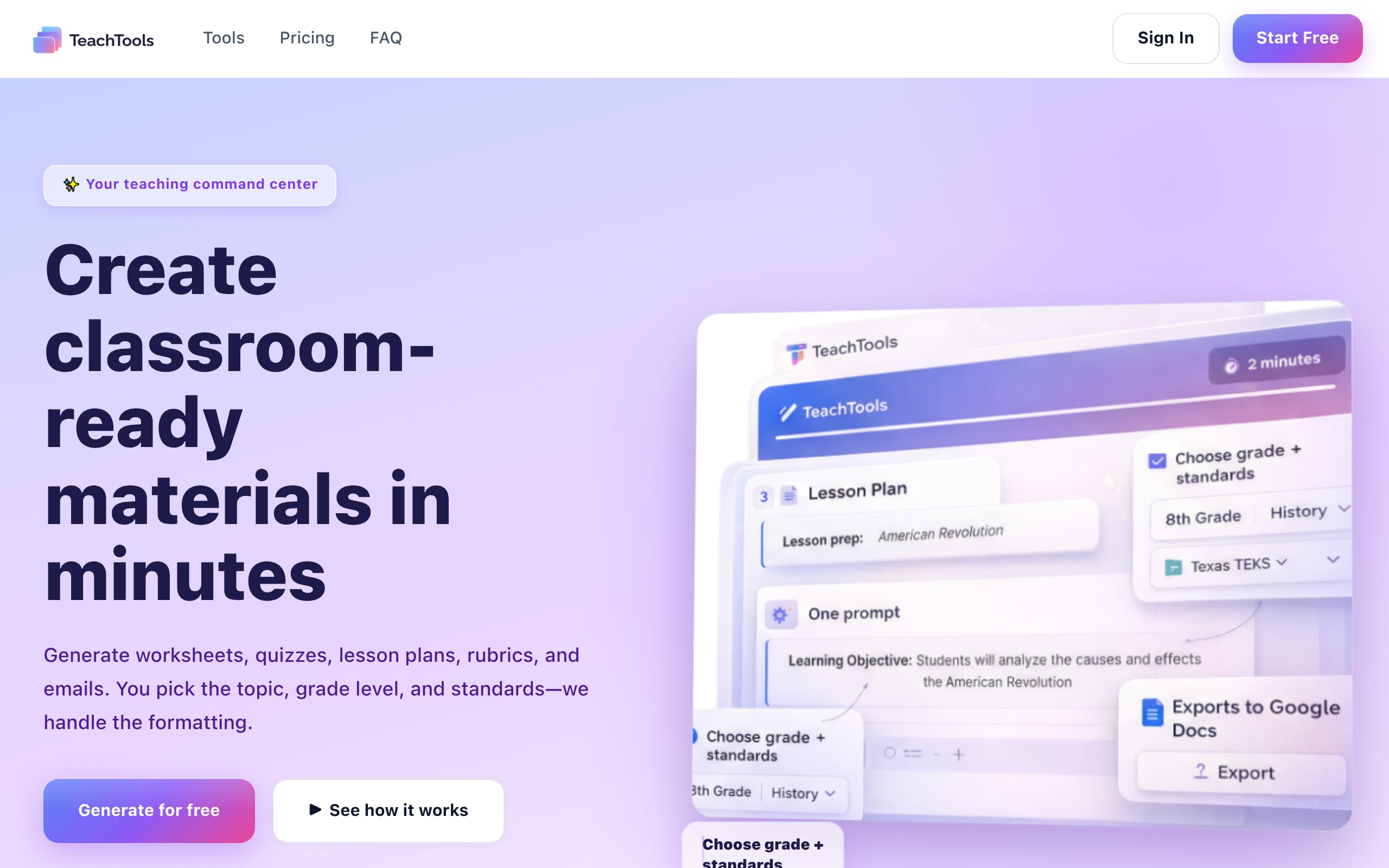
- AI Worksheet Generators: Create customized, printable worksheets on any topic in minutes. The TeachTools worksheet generator lets you specify the subject, grade, and topic to produce print ready PDFs or Google Docs.
- AI Quiz and Test Generators: Build assessments with multiple choice, short answer, and matching questions aligned to your grade level. An interactive self checking PDF quiz speeds up the creation of formative checks.
- Bingo Board Generator: For vocabulary and concept review, a bingo board generator offers a fun, flexible option that works in synchronous sessions or as an independent activity.
Communication and Planning Assistants
Staying organized and keeping parents informed is crucial during remote instruction.
- Lesson Plan Generators: Outline entire lessons with objectives, activities, and assessments using a lesson plan tool to streamline weekly planning.
- Parent Communication Tools: Generate professional, personalized emails and classroom announcements with a family email generator to maintain strong home school connections.
- Report Card Comment Generators: Save hours during reporting periods by drafting thoughtful, constructive report card comments based on student performance keywords.
Making Remote Learning Work for You and Your Students
Implementing effective remote learning activities is about finding a sustainable balance between engaging instruction and manageable prep work. The teachers who thrive in remote and hybrid settings are not the ones who create the most elaborate activities. They are the ones who build repeatable systems, reuse strong templates, and choose tools that do the formatting work for them.
Establish clear communication. Mix synchronous and asynchronous formats. Differentiate with intention. And when you need a last minute worksheet, a standards aligned quiz, or a professional parent email, use tools built for that purpose.
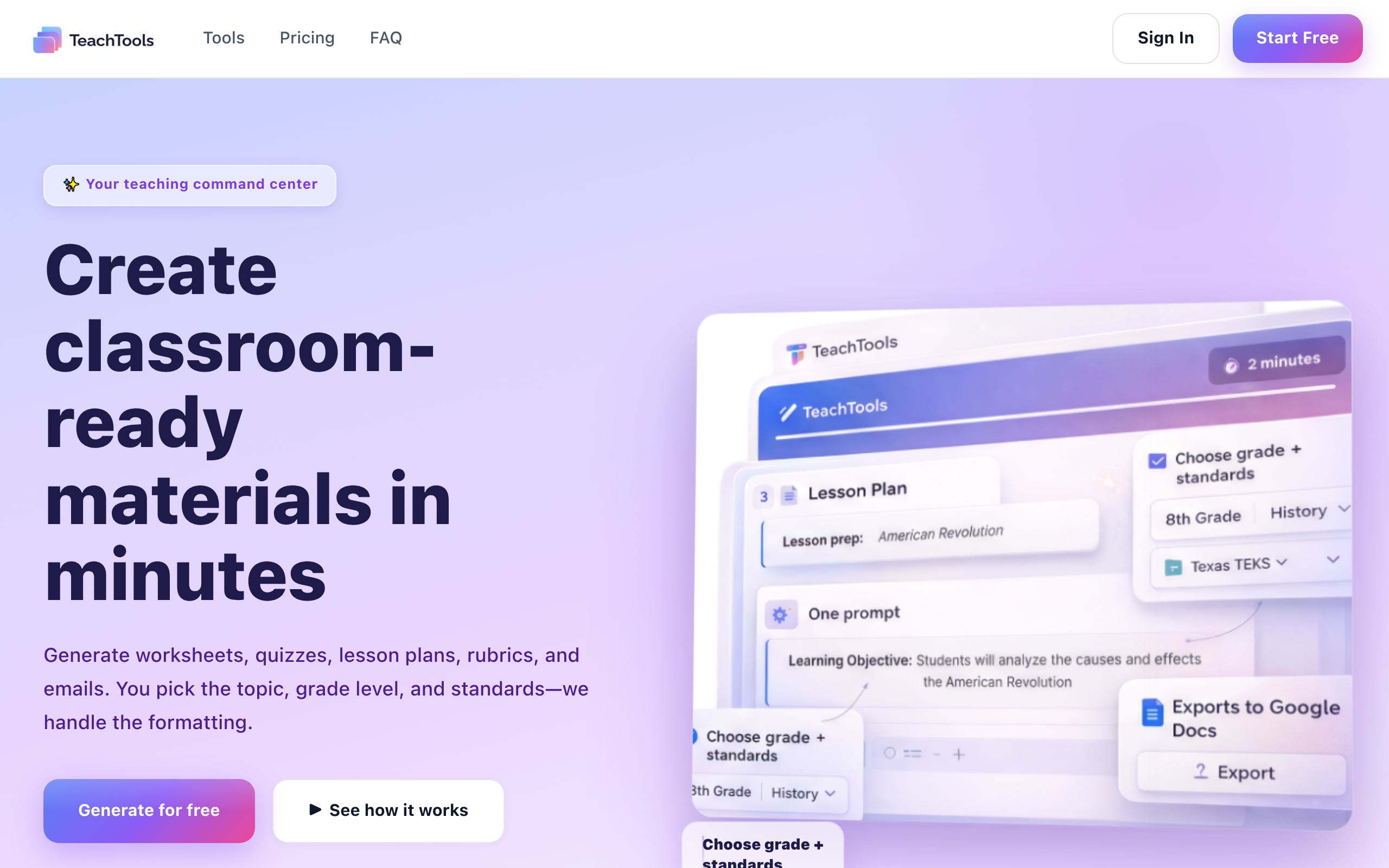
Explore how AI powered tools can save you hours each week. Get started with TeachTools and create classroom ready materials in minutes.
Frequently Asked Questions
How do you make remote learning activities interactive?
Incorporate tools like collaborative online whiteboards, breakout rooms for small group discussions, and polling or quiz apps for real time feedback. Game based activities like digital escape rooms, bingo boards, and team review challenges also work well. The key is requiring students to do something (respond, create, vote) rather than just watch.
What are some good remote learning activities for elementary students?
Focus on hands on and movement based activities. Ideas include virtual show and tell, scavenger hunts where students find items around their home matching a description, guided drawing sessions, and simple science experiments using household materials. Stop motion animation with paper cutouts is surprisingly effective even with young learners. Printable sight words activities are also a solid asynchronous option.
What are the best distance learning activities for middle school?
Middle schoolers respond well to project based work with visible outcomes: Instagram Stories simulations, collaborative map projects, 30 second book talks, digital escape rooms, and stop motion videos explaining science or math concepts. Build in peer feedback and gallery walks to tap into the social motivation that drives this age group.
How can I save time creating materials for remote learning?
Using an AI powered platform is one of the most effective approaches. Tools like TeachTools can generate worksheets, quizzes, lesson plans, bingo boards, and parent emails in seconds. This lets you create high quality, customized content without starting from scratch for every single lesson.
Are AI tools for teachers safe and FERPA compliant?
It depends on the tool, so choosing wisely matters. Look for platforms that are transparent about their privacy policies. A FERPA compliant AI tool will not require student personal information to function, will use encryption (like AES 256), and will not train its models on your data. Always check if the provider can offer a Data Processing Addendum (DPA) for your school or district.
How do I adapt remote learning for special education students?
Break instruction into shorter sessions, use visual schedules, provide modified graphic organizers with pre filled examples, and record video models of each task. Use voice to text tools for students who struggle with typing. Track IEP goals through digital checklists, and build sensory breaks into the daily routine. The accommodations in a student's IEP still apply in a remote setting.
What is a home learning packet and when should I use one?
A home learning packet is a curated set of printable activities, readings, and response sheets for students who lack reliable daily internet access. Include a family letter, a graphic organizer, a reading passage, a hands on activity, and a self reflection sheet. Distribute packets weekly alongside other school services for students who need offline options.
How do I assess student work remotely?
Use a mix of assessment types. Quick formative assessments work well with online quiz tools, self checking PDFs, or exit tickets. For larger assignments, attach a clear rubric directly to the assignment so expectations are visible. AI assisted grading tools can help review work, freeing your time for personalized, constructive feedback.